
 Use Diagnostic Charge to charge a battery installed and connected in a vehicle using test parameters determined by vehicle VIN or year, make, and model of the vehicle being tested.
At any time during the test, tap  to return to the previous screen; or
  to return to the Main Menu.
Battery Test
- Connect the charger clamps to the appropriate battery posts.
- At the Main Menu, tap Diagnostic Charge. The Acquire VIN screen is displayed.
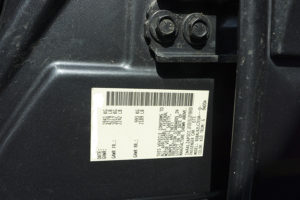
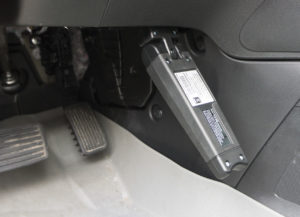
- Use the connected bar code scanner to scan the VIN bar code, usually located on the driver’s side door frame. A paired CVG can also be used. The VIN can also be entered manually.
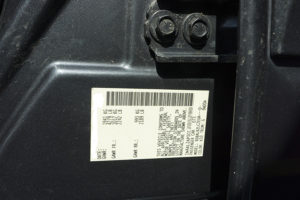
For best results, use the barcode located on the driver’s side door frame. The VIN is also displayed behind the windshield on the driver’s side dashboard.
NOTE: Refer to Appendix A for recommended scanning procedures and VIN scanning help
Driver’s Door Frame:
Windshield:
CVG Module:
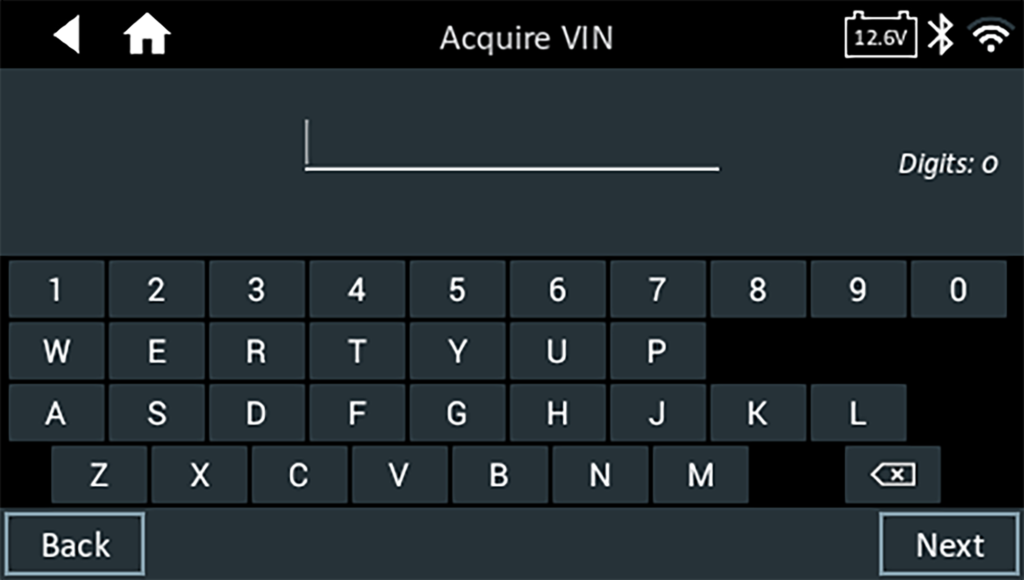
Manual Entry:
If your barcode scanner is not available, you can use the on-screen keypad to manually type the 17-digit VIN and Tap NEXT. The displayed digit counter will count up the alphanumeric characters as they are entered on the keypad.
If the VIN is not found in the current vehicle database at the time, you can manually select the Year, Make, and Model of the vehicle you are testing to continue. This will prompt you to enter the battery information manually as shown in the next step.
You also have the option to skip VIN entry and go straight to manual selection of the battery information. If you do not enter a VIN, the DCA will not generate a test code at the end of the test.
4. The Edit Battery information screen displays vehicle and battery information based on the VIN.
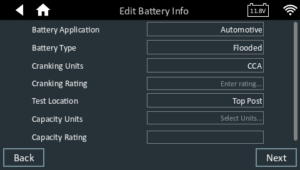
If the displayed information is correct, tap Next to begin the Battery Test or Reset to reset the parameters to the factory defaults. If you did not enter a VIN and nothing is populated, you will need to manually select the fields before selecting Next.
6. Tap the box across from each displayed parameter and select the correct information from the displayed list.
NOTE: See FAQ’s section “Battery Information Definitions” for complete parameter descriptions.
The charger performs a series of tests to determine the overall condition of the battery before applying a charge. Those steps include measuring the ambient battery temperature, Cranking Health, Reserve Capacity, Charge Acceptance, and applying a Load Test to the battery.
The test results are then displayed on the charger screen.
Battery Test Results
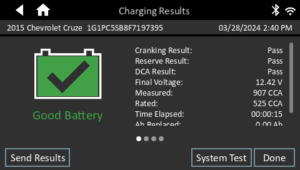

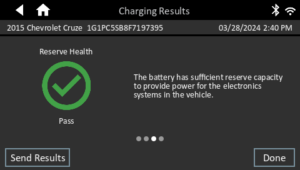

Icons are color-coded to indicate status:
- GREEN: All test parameters were completed and have passed
- RED: The battery has failed the test
- YELLOW: Some test parameters may require further testing
- WHITE: Insufficient date to perform the test
To print or send the test to a configured printer or via email, tap Send Results and select an option. To continued with the System Test, tap System Test. To return to the Home Screen, tap Done.
NOTE: Refer to the Test Results Decision Tables section for a complete definition of possible test results.
System Test
- Start the engine and let it idle.
- Turn off all electrical accessories such as headlights and the interior ventilation blower fan and tap Next.
- The analyzer tests the alternator output at idle.
- When prompted, rev and hold the engine to between 2000 to 3000 RPM and tap Next. The analyzer tests the alternator output again.
- When prompted, return the the engine to idle.
- Turn on the high beam headlights and interior ventilation blower motor and tap Next.
- The analyzer tests the alternator output at idle.
- When prompted, rev and hold the engine to between 2000 to 3000 RPM and tap Next.
- The analyzer tests the alternator output again.
- When prompted, turn off all loads and idle the engine.
- Tap Next to display the test results.
System Test Results – Summary
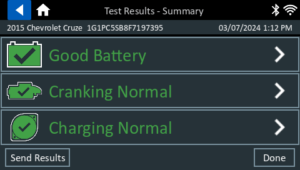
A Test Results – Summary screen is displayed following a System Test. Tap

to view detailed test results for each part of the test.
NOTE: Refer to the Test Results Decision Tables section for a complete definition of possible test results.
To send the test results to a configured printer or via email, tap Send Results and select an option. To return to the Home Screen, tap Done or to return to the Main Menu.